Graphing Calculator Online Free TI-84 Style Tool for Math and Science (2026)
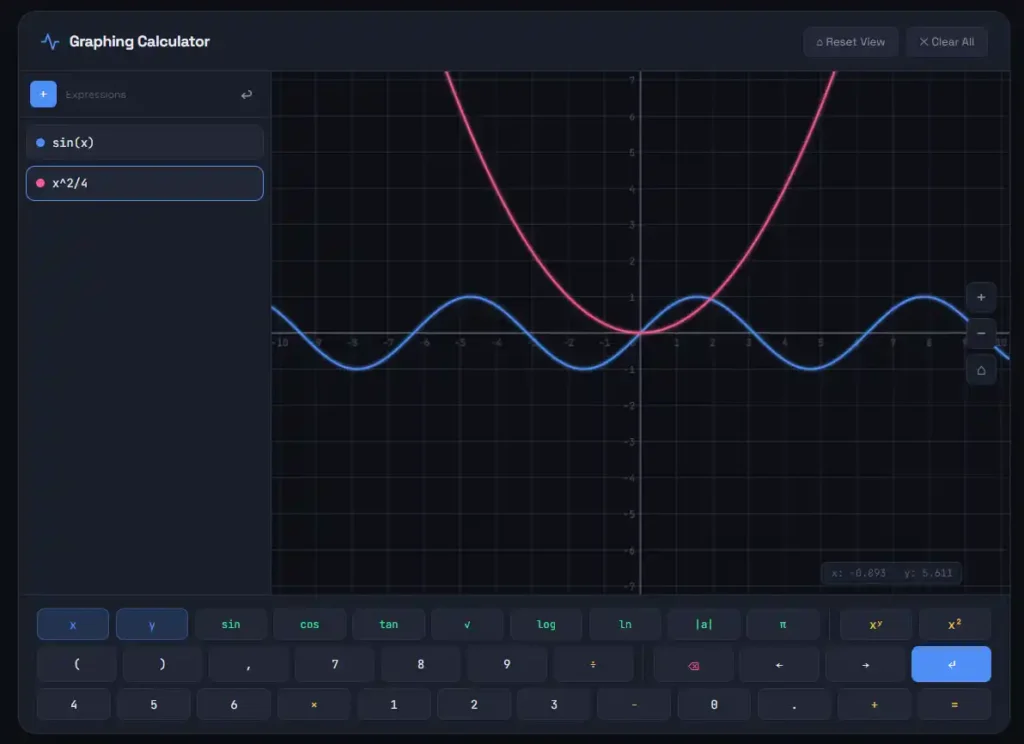
A graphing calculator online gives you the power of a TI-84 or Desmos graphing calculator directly in your browser. No download.
No cost. No setup. Type an equation, see the graph instantly, and move on.
Whether you are a student working through algebra, a teacher building a lesson, or an engineer checking a model, this tool handles it all.
This guide covers how to use it, what it does, how it compares to the TI-84 Plus CE and Desmos, and who gets the most out of it.
What Is an Online Graphing Calculator?
An online graphing calculator is a browser-based math tool. It plots equations on a coordinate plane in real time. You type a function, and the graph appears. Adjust the equation, and the graph updates immediately.
Tools like the Desmos graphing calculator, GeoGebra, and TI-84 online simulators fall into this category. They replace expensive physical devices like the Texas Instruments TI-84 Plus CE, TI-30XS the TI-89 Titanium, and the Casio fx-9750GIII for everyday school and work use.
Physical devices like the TI-84 Plus or TI-Nspire require a one-time purchase of $100 to $170, while browser-based tools cost nothing.
TI-84 Calculator: That price difference matters, especially when you just need to check a graph or solve a problem on the go.
What Can You Do With a Graphing Calculator Online?
A modern online graphing calculator covers far more than basic plotting. Here is what you can actually do with one.
Graph Functions Instantly
Type any function and the graph appears. Linear equations, parabolas, sine waves, exponential curves — it all works the same way. You can graph multiple functions at once and compare them side by side.
Supported function types include:
Solve Algebra and Equation Problems
You can find intercepts, intersections, and roots directly on the graph. The tool highlights where two functions cross, where a curve hits the x-axis, and where values reach a maximum or minimum. This visual approach to algebra makes abstract problems concrete.
The Desmos graphing calculator and similar tools also support systems of equations. Graph both equations, and the intersection point gives you the solution.
Handle Calculus Visually
Derivatives, tangent lines, integrals, and limits all work in a graphing calculator online. You can see the area under a curve, trace a derivative function, and understand rate of change without doing every step by hand.
This makes the tool valuable for AP Calculus AB, AP Calculus BC, and college-level math courses where visualization speeds up understanding.
Run Statistical Analysis
Plot scatter data, run linear regression, and visualize probability distributions. Teachers use real-time function plotter tools to demonstrate the unit circle, trigonometric identities, graph transformations, and function composition. TI-84 Calculator charger. Students use them to study regression lines and statistical behavior across data sets.
Use Scientific Calculator Functions
Beyond graphing, most online tools include a full scientific calculator. You can compute logarithms, exponents, trigonometric values, and factorials without switching tools. The Desmos scientific calculator and the Desmos graphing calculator both handle these tasks in the same interface.
How to Use the Graphing Calculator Online — Step by Step
Graphing Calculator Online: Using a graphing calculator online takes about ten seconds to start. Here is the exact process.
Step 1: Open the Calculator in Your Browser
No account is required. Open the tool on any device. It works on phones, tablets, Chromebooks, and desktop computers.
Step 2: Type Your Equation
Click the input field and type your function. For example, type y = x^2 – 4to graph a parabola. The graph appears as you type. You do not need to press enter or submit the equation.
Step 3: Explore the Graph
Use your mouse or finger to pan across the graph. Scroll or pinch to zoom in and out. Graphing Calculator Online This lets you examine behavior at different scales, which is especially useful for exponential functions and trigonometric graphs.
Step 4: Add More Functions
Add a second equation to a new input line. The tool plots both functions simultaneously in different colors. This makes it easy to compare curves, find intersections, and understand how changing a parameter shifts a graph.
Step 5: Adjust Your Equation
Change a coefficient and watch the graph move in real time. Sliders let users explore graph transformations by adjusting coefficients in real time — making concepts like slope-intercept form tangible. TI-84 Calculator: This is one of the biggest advantages an online graphing calculator has over a physical TI-84.
Step 6: Read Key Values
Click any point on the graph to see the exact coordinates. Find intercepts, local maxima, local minima, and asymptotes without doing manual calculations.
Step 7: Save or Share Your Work
Generate a shareable link or take a screenshot. Teachers can share graphs with students. Students can save their work before an exam. Some tools let you download the graph as an image file.
Online Graphing Calculator vs TI-84 vs Desmos vs GeoGebra
These four options come up constantly in math classes and online searches. Here is an honest look at each one.
Graphing Calculator Online (Browser-Based Tool)
A general online graphing calculator gives you instant access without logging in or installing anything. It covers the core functions most students and professionals need: graphing, algebra, calculus, scientific computation, and statistics. It works on every device, costs nothing, and requires zero setup.
Best for: everyday math, homework, quick problem checking, classroom use.
Desmos Graphing Calculator
The Desmos graphing calculator is free, easier, faster, and has more features than the TI-83, including sliders. Many prefer it for daily use. iProVPN Desmos also includes a scientific calculator, a 3D graph tool, and a geometry calculator. The Desmos teacher tools let educators build interactive lessons.
The Desmos graphing calculator is now embedded in the digital SAT. The College Board endorsed Desmos and allows it to be directly embedded in tests, cutting off access to the rest of the web. Part SolutionsThis makes it an important tool to learn for standardized test prep.
Best for: learning math concepts, SAT prep, classroom exploration, and teacher demonstrations.
TI-84 Plus CE (Texas Instruments)
The TI-84 Plus CE is a physical graphing calculator from Texas Instruments. It costs between $100 and $130. The TI-84 Plus CE comes in multiple colors including black, white, blue, pink, mint, rose gold, and blueberry. It has its own rechargeable battery and works offline without any internet connection.
For a student who has spent time practicing with the TI-84, it is far faster in exam conditions. The learning curve is an investment that pays dividends in speed on test day.
The TI-84 is allowed on the ACT, SAT, AP exams, and most classroom tests where internet access is not permitted. Students who need a physical device for exams still benefit from practicing with an online TI-84 simulator so they learn the key sequences before test day.
Best for: standardized tests, in-class exams, offline use.
TI-Nspire CX II CAS
The TI-Nspire CX II CAS is Texas Instruments’ most advanced student calculator. It handles symbolic algebra, full CAS (Computer Algebra System) calculations, Python programming, and color graphing. The TI-Nspire CX II costs more than the TI-84 but offers significantly more capability for advanced math and engineering courses.
Best for: AP Physics, AP Statistics, college-level STEM, and engineering coursework.
GeoGebra
GeoGebra is strong in geometry and 3D. It has more construction tools than Desmos, though the Desmos graphing calculator is simpler for pure graphing and functions. iProVPN GeoGebra works offline and is popular in European school systems.
Best for: geometry, 3D graphing, geometric constructions.
| Feature | Online Graphing Calculator | Desmos | TI-84 Plus CE | TI-Nspire CX II |
| Cost | Free | Free | $100-$130 | $150-$165 |
| Requires Internet | Yes | Yes | No | No |
| Allowed on ACT/SAT | No | SAT only | Yes | Varies |
| 3D Graphing | Some tools | Yes (Desmos 3D) | No | Yes |
| CAS Support | No | No | No | Yes |
| Works on Mobile | Yes | Yes | No | No |
| Offline Use | No | App only | Yes | Yes |
| Python Programming | No | No | Yes (CE Python) | Yes |
Who Should Use an Online Graphing Calculator?
High School Students
High school students use graphing calculators in algebra, pre-calculus, trigonometry, AP Calculus, and AP Statistics. An online graphing calculator handles all of these subjects without any cost. Students studying for the SAT benefit from learning the Desmos graphing calculator since it is now the official embedded tool in the digital SAT.
Students who take the ACT should also practice with a physical TI-84. Using a free TI-84 online calculator for practice builds familiarity with the interface and key sequences before the actual exam.
College Students
College calculus courses move fast. An online graphing calculator helps visualize limits, derivatives, integrals, and series quickly. The Casio fx-9750GIII and TI-89 Titanium are popular in college settings, but free online tools handle most classroom problems just as well.
Engineering students working with parametric equations, polar coordinates, vector functions, and 3D graphs will find browser-based tools like GeoGebra and Desmos 3D particularly useful alongside their physical calculators.
Teachers and Tutors
One math instructor switched from an expensive TI calculator to Desmos because it is free, noting that minimizing costs to students is essential. My Engineering Buddy
Teachers use online graphing tools to project function behavior on a screen, build interactive lessons, and share shareable graph links with students. The Desmos teacher platform includes pre-built activities. Teachers can also embed a graphing calculator directly into a classroom website.
Engineers and STEM Professionals
Engineers use graphing tools to model data, visualize equations, and check functions quickly. For rapid field calculations, a browser-based tool requires no specialized hardware. For more complex symbolic work, tools like the TI-89 Titanium or the HP Prime G2 offer CAS capabilities that go beyond what most online calculators provide.
Test Prep Students
Students preparing for the SAT, ACT, AP Calculus, or AP Statistics exams need to practice with the right tools. The SAT now uses the Desmos graphing calculator in its digital format. The ACT allows the TI-84 Plus CE, TI-Nspire CX II, and most standard graphing calculators but does not permit internet access.
Practicing with a free online TI-84 simulator helps build the muscle memory for button sequences before the real exam.
Key Features to Look For in an Online Graphing Calculator
Not all tools are equal. Here is what separates a strong online graphing calculator from a basic one.
Real-Time Graphing:
The graph should update as you type, not after you press a button. This live feedback is what makes online tools more interactive than physical calculators.
Multiple Function Support:
You should be able to graph five or more functions simultaneously in different colors without the tool slowing down.
Zoom and Pan Controls:
Smooth zoom with a scroll wheel or pinch gesture, plus drag-to-pan, lets you examine any region of the graph closely.
Piecewise Function Support:
Many students need to graph piecewise defined functions for calculus. A strong online calculator handles these cleanly with domain restrictions.
Polar and Parametric Modes:
These are standard in pre-calculus and calculus courses. A polar graph calculator and a parametric graphing calculator should be built in, not hidden behind menus.
Statistical Regression:
Linear regression, quadratic regression, and scatter plot tools make the calculator useful for statistics courses and data analysis.
Accessibility on All Devices:
The calculator should work on a phone just as well as on a laptop. Responsive design matters for students who do homework on mobile.
When a Physical Graphing Calculator Is Still the Better Choice
Online tools are not always the right answer. Here is when you should reach for a physical device instead.
Standardized tests:
The ACT, AP exams, and many classroom tests require a physical calculator. The TI-84 Plus CE and TI-Nspire CX II are the most commonly allowed devices. Having one and knowing it well before test day matters.
Offline settings:
If you work in a place without reliable internet, a physical TI-84 or Casio fx-9750GIII is more dependable than any browser tool.
Programming and advanced projects:
The TI-84 Plus CE Python edition and TI-Nspire CX II both support Python programming. If you want to write programs on your calculator, a physical device gives you that capability in a way that most online tools do not.
Long-term investment:
A TI-84 Plus CE lasts for years and holds its value. Many students keep theirs through high school and college.
Start Using Your Graphing Calculator Online
You do not need to download anything, create an account, or pay for access. Open the calculator in your browser, type your equation, and your graph appears in seconds.
Whether you are plotting a parabola for algebra class, checking a regression for statistics, or visualizing a derivative for calculus, an online graphing calculator gets the job done fast. It works the same way on your phone, tablet, or laptop.
For exam prep, practice with both a free online TI-84 simulator and the Desmos graphing calculator. Graphing Calculator Online Each prepares you for a different testing scenario. For everyday math, an online graphing calculator is the fastest, most accessible option available.
Graphing Calculator Online — Free, Instant, and Built for Every Math Problem
Open your browser. Type an equation. Watch the graph appear in real time. That is all it takes to start using a graphing calculator online. No account, no download, no $130 purchase. Just math, visualized instantly.
This guide covers everything you need to know — what a graphing calculator online actually does, what it does better than a physical device, where it falls short, and which tool you should use for exams, class, and everyday problems.
What Makes an Online Graphing Calculator Different From a Regular Calculator
A regular scientific calculator computes one answer at a time. You type a value, press a button, and get a number. A graphing calculator does something more powerful. It takes any equation you write and draws it as a curve on a coordinate plane. You can see the shape of the function, how it rises or falls, where it crosses zero, and what happens when you change the numbers.
An online graphing calculator does all of that in a browser. The Desmos graphing calculator, GeoGebra, and online TI-84 graphing calculator simulators are the most widely used versions. Each one turns your laptop, phone, or tablet into a full graphing display calculator, no hardware purchase required.
What You Can Do With a Graphing Calculator Online
A strong Graphing Calculator Online handles far more than drawing a line. Here is what you can actually work through.
Visualize Basic Functions With Ease
Type y = 2x + 3and a straight line appears. Type y = x^2 – 5and a parabola shows up. Change a coefficient and the graph shifts in real time. This live feedback makes it far easier to understand how slope, intercepts, and curvature work than reading a textbook explanation.
Solve Equations Graphically
Two functions plotted at the same time show exactly where they intersect. That intersection point is your solution. This graphical method of solving equations works for linear systems, quadratics, and any function pair you can type in.
It is particularly useful for AP Calculus and algebra courses where visualizing solutions builds deeper understanding than algebraic manipulation alone.
Understand Quadratic Behavior
The parabola is one of the most important shapes in math and science. A function graph and calculator shows you the vertex, axis of symmetry, and both roots in one view.
Adjust the avalue in y = ax^2 + bx + cand watch the parabola widen, narrow, or flip. This is the kind of visual learning no set of practice problems can replicate on its own.
Explore Inequalities Visually
Type an inequality like y > x^2 – 3and the graphing calculator shades the correct region automatically. Inequalities become intuitive when you can see the boundary curve and the solution region together. Students who struggle with inequality notation in algebra often find the visual version much easier to grasp.
Study Periodic and Complex Functions
Sine, cosine, and tangent graphs require a proper graphing display calculator to understand fully. Plot y = sin(x)alongside y = 2sin(x)and the difference in amplitude becomes obvious. Change the frequency by writing y = sin(2x)and the graph compresses. These relationships between function parameters and graph behavior are the core of trigonometry, and a live graph shows them better than any formula.
Compare Two Functions Side by Side
Plotting two functions at once lets you compare their growth rates, find intersections, and analyze behavior at the same x-values. This is standard in calculus when comparing a function and its derivative, and in statistics when overlaying regression models.
How to Use a Graphing Calculator Online
Graphing Calculator Online. The process takes about thirty seconds the first time you do it. It gets faster from there.
Input Your Formula
Click the expression field and type your equation. Use ^for exponents, /for division, and standard function names like sin, cos, log, and sqrt. The Desmos graphing calculator and most online graphing calculators accept natural math syntax, so you write it roughly how it looks on paper.
View the Graph Instantly
The graph appears as you type, without pressing enter. This is one of the most useful features of a modern online graphing calculator. You can watch the curve form letter by letter, which helps catch typos before they become confusion.
Adjust Your Formula or Graph Settings
Change any number in your equation and the graph updates immediately. Move the viewing window by dragging, zoom with your scroll wheel or pinch gesture, and set custom axis ranges if you need to examine a specific region. For functions that behave differently at different scales, like exponential growth or logarithmic decay, zooming in and out reveals behavior that a fixed view would miss.
Export or Download the Result
Most online graphing calculators let you download the graph as an image or copy a shareable link. This is useful for students who want to include a graph in a report, teachers who want to share a visual with a class, or anyone who wants to save their work.
Pros and Cons of Using an Online Graphing Calculator
Pros
Cons
What the TI-84 Does Better
The TI-84 graphing calculator has been in classrooms for over two decades for a reason. Here is where the physical device still wins.
Exam room access. The TI-84 Plus CE is approved for the SAT, ACT, AP exams, and most state standardized tests. No internet, no browser, no disqualification risk.
Speed for practiced users. Students who commit to learning the TI-84 quickly outpace those using a digital interface on test day. Ti84hubThe physical keypad builds muscle memory that pays off under timed conditions.
Offline reliability. Four AAA batteries or a built-in rechargeable unit keeps the TI-84 running without any internet or device dependency.
Classroom compatibility. Texas Instruments calculators are ubiquitous in US high schools and colleges, often being the default choice for teachers and standardized tests, with extensive support from textbooks and tutorials. MathosIf your teacher runs every class demonstration on a TI-84, following along on the same device is a real advantage.
Python programming. The TI-84 Plus CE Python edition supports writing and running Python programs directly on the calculator. This functionality is useful for computer science coursework and opens up more advanced math programs.
What Online Calculators Do Better
Cost. Free versus $100 to $130. For most students doing homework or studying concepts, the online graphing calculator wins on value every time.
3D graphing. A 3D graphing calculator built into a browser handles surfaces, contour plots, and three-variable functions. The standard TI-84 has no 3D capability at all.
Interactive sliders. Change any parameter in real time and watch the graph respond. This is the most powerful learning feature in tools like the Desmos graphing calculator, and it simply does not exist on a physical TI-x30 Calculator.
Sharing and collaboration. Copy a link to your graph and share it in seconds. Teachers use this to send live examples to students. Students use it to show their work visually.
Always up to date. Online tools receive updates without any firmware process. The Desmos graphing calculator adds new features regularly, while the TI-84 hardware is largely unchanged from the 2004 original design.
Is Desmos the Same as a Graphing Calculator?
Desmos is a graphing calculator.
It is one of the best browser-based graphing tools available, and the Desmos graphing calculator is now embedded in the digital SAT as the official calculator tool.
That said, Desmos is not a TI-84 simulator. It has its own interface, its own syntax, and its own feature set. The Desmos graphing calculator does not look or work like a physical Texas Instruments calculator. If you need to practice for an exam that requires TI-84 familiarity, Desmos builds different habits than the physical device.
What Desmos does exceptionally well is visual exploration.
The Desmos graphing calculator shows graphs instantly as you type, supports sliders to change numbers and see how graphs move, and works on phones, tablets, and computers. iProVPN For learning math concepts, it is one of the most effective tools available at any price.
Desmos also offers a scientific calculator, a geometry tool, and a 3D graph calculator as separate apps at desmos.com. These are distinct from the main Desmos graphing calculator but built with the same design approach.
Which Should You Use for the SAT, ACT, or AP Exams?
The answer depends on which test you are taking.
For the SAT: The digital SAT includes the Desmos graphing calculator built directly into the test interface. You can use a physical calculator as well, but many students find Desmos sufficient for the math section. Practice with Desmos before your test date so the interface feels familiar.
For the ACT: The ACT requires a physical graphing calculator. Internet-connected devices are not allowed. The TI-84 Plus CE and TI-Nspire CX II are both approved for major standardized tests including the SAT and AP exams.Texas InstrumentsFor the ACT specifically, bring a physical TI-84 or equivalent device and make sure you know the key sequences for common operations.
For AP Exams: The College Board maintains a list of approved calculators. The TI-84 Plus CE, TI-84 Plus CE Python, and TI-Nspire CX II are all on the approved list. The TI-89 Titanium is approved for some AP exams but not all. Check the specific exam policy before test day.
For AP Calculus AB and BC: Both the TI-84 graphing calculator and the TI-Nspire CX II perform well here. Students who want symbolic algebra support for studying should look at the TI-Nspire CX II CAS or TI-89 Titanium, but remember that the CAS versions are restricted on some exams.
The practical answer for most students is this: use a free online graphing calculator for homework and concept learning, and own a physical TI-84 Plus CE for any exam where a physical device is required.